- How to Sync your Blackboard Calendar to your Outlook Web Mail / Office365 Calendar
(We don't have Office 365 yet, but we will probably have it next year) - How to Sync your Blackboard Calendar to your Google Calendar
- How to Post a Link to a Google Spreadsheet into your Blackboard Course
- Creating a Non-anonymous Survey in Blackboard
- Give Audio Feedback on an Assignment in Blackboard Using an MP3 Recorder
Showing posts with label tools. Show all posts
Showing posts with label tools. Show all posts
Friday, October 24, 2014
Blackboard Tips
Northeastern University posted a few useful tips in their blog today that might come in handy.


Thursday, December 5, 2013
New Date Management Tool
On December 20th we will install a new Blackboard tool called "Date Management." This tool will make it easy for you to adjust all the due dates and item availability dates in your course. If you have a lot of dates to change in your courses, you may want to wait until this tool is available before changing them one-by-one.
Watch a short video to see how it will work at http://youtu.be/TF1kRIh8cZc. We do not use terms on our system, so follow the steps below to adjust the dates for a normal full semester course from Fall 2013 to Spring 2014.
Steps to use the Date Management Tool in Spring 2014:

Watch a short video to see how it will work at http://youtu.be/TF1kRIh8cZc. We do not use terms on our system, so follow the steps below to adjust the dates for a normal full semester course from Fall 2013 to Spring 2014.
Steps to use the Date Management Tool in Spring 2014:
- Copy your course from this semester into the spring semester container as usual
- Go into the spring semester container
- Go to Control Panel > Course Tools > Date Management
- Click "Use Course Start Date"
- Current Start Date: 08/19/2013 (a late start class would have had a different start date)
- New: 01/27/2014 (adjust as needed for shorter classes)
- Click the Start button

Once this process completes, you can easily fine tune all the dates in your course using the Date Management Review page. This review page will be available from then on through Control Panel > Course Tools > Date Management.
If you want to play with this tool now, it's available on the Blackboard test server at https://gcccdtest.blackboard.com.
For more information, see https://help.blackboard.com/en-us/Learn/9.1_SP_12_and_SP_13/Instructor/070_Course_Content/010_Reusing_Content/Date_Management.
Tuesday, October 1, 2013
Using Item Analysis to Assess SLOs
Guest post by Anthony Zambelli.
Blackboard now allows you to run an item analysis on any test you've deployed in it. Although not necessarily the intent of item analysis, you now have a new and powerful tool to assess your students’ achievement of student learning outcomes when you administer your assessments in Blackboard.
Item analysis provides statistics on overall test performance and individual test questions. Although item analysis is intended to help you recognize questions that might be poor discriminators of student performance so that you can improve questions for future test administrations or to adjust credit on current attempts, it can also be used to assess student achievement of student learning outcomes.
You will be using the Question Statistics Table on the Item Analysis Page to assess your SLOs. You can run item analyses on deployed tests with submitted attempts, but not on surveys. Access previously run item analyses under the Available Analysis heading or select a deployed test from the drop-down list and click Run to generate a new report. The new report's link appears under the Available Analysis heading or in the status receipt at the top of the page. For best results, run item analyses on single-attempt tests after all attempts have been submitted and all manually graded questions are scored.
Just follow the following instructions on running item analysis on a test:
You can access item analysis in three locations within the assessment workflow. It is available in the contextual menu for a:

Blackboard now allows you to run an item analysis on any test you've deployed in it. Although not necessarily the intent of item analysis, you now have a new and powerful tool to assess your students’ achievement of student learning outcomes when you administer your assessments in Blackboard.
Item analysis provides statistics on overall test performance and individual test questions. Although item analysis is intended to help you recognize questions that might be poor discriminators of student performance so that you can improve questions for future test administrations or to adjust credit on current attempts, it can also be used to assess student achievement of student learning outcomes.
You will be using the Question Statistics Table on the Item Analysis Page to assess your SLOs. You can run item analyses on deployed tests with submitted attempts, but not on surveys. Access previously run item analyses under the Available Analysis heading or select a deployed test from the drop-down list and click Run to generate a new report. The new report's link appears under the Available Analysis heading or in the status receipt at the top of the page. For best results, run item analyses on single-attempt tests after all attempts have been submitted and all manually graded questions are scored.
Just follow the following instructions on running item analysis on a test:
You can access item analysis in three locations within the assessment workflow. It is available in the contextual menu for a:
- Test deployed in a content area.
- Deployed test listed on the Tests page.
- Grade Center column.

- Access the test's contextual menu.
- Select Item Analysis.
- In the Select Test drop-down list, select a test. Only deployed tests are listed.
- Click Run.
- View the item analysis by clicking the new report's link under the Available Analysis heading or by clicking View Analysis in the status receipt at the top of the page.

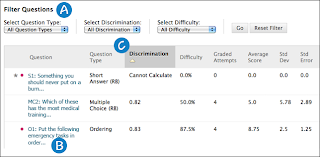
- Filter the question table by question type, discrimination category, and difficulty category.
- Investigate a specific question by clicking its title and reviewing its Question Details page.
-
Statistics for each question are displayed in the table, including:
- Discrimination: Indicates how well a question differentiates between students who know the subject matter those who do not. A question is a good discriminator when students who answer the question correctly also do well on the test. Values can range from -1.0 to +1.0. Questions are flagged for review if their discrimination value is less than 0.1 or is negative. Discrimination values cannot be calculated when the question's difficulty score is 100% or when all students receive the same score on a question.
- Difficulty: The percentage of students who answered the question correctly. Difficulty values can range from 0% to 100%, with a high percentage indicating that the question was easy. Questions in the Easy (greater than 80%) or Hard (less than 30%) categories are flagged for review.
- Graded Attempts: Number of question attempts where grading is complete. Higher numbers of graded attempt produce more reliable calculated statistics.
- Average Score: Scores denoted with an * indicate that some attempts are not graded and that the average score might change after all attempts are graded. The score displayed here is the average score reported for the test in the Grade Center.
- Standard Deviation: Measure of how far the scores deviate from the average score. If the scores are tightly grouped, with most of the values being close to the average, the standard deviation is small. If the data set is widely dispersed, with values far from the average, the standard deviation is larger.
- Standard Error: An estimate of the amount of variability in a student's score due to chance. The smaller the standard error of measurement, the more accurate the measurement provided by the test question.
- Identify the SLO that is being assessed by the question.
- Determine a satisfactory score that indicates that your students have achieved that SLO.
- Compare your satisfactory score to the average score. If that score is greater than or equal to the satisfactory score then your students have achieved the SLO which you will report in TracDat. If the average score is less than your satisfactory score, then the students didn’t achieve the SLO and that may be an SLO you may want to work on the next time the course is taught, again reporting in TracDat.
For more information see the Blackboard Help.
Thursday, August 22, 2013
Apps for Education
Here are two extensive collections of apps and web tools that are useful to educators.
Teaching Apps provides a list of the top eleven mobile applications for education.
464 Digital Learning Tools To Sift Through On A Rainy Day has many unique apps that you may not have run across anywhere else.
Thursday, August 8, 2013
Introduction Video: Why Your Online Course Needs One
I just read an excellent article on why you should create an introduction video for your online course that I wanted to share that with you. You can read it at http://facultyecommons.org/introduction-video/.
The article includes links to a few tools to help make these videos, but all you really need is a webcam. You can watch an introduction video created by our new Spanish instructor for Cuyamaca College's first online Spanish course at http://youtu.be/wCCW33mO32o. Donna Marques recorded this video using her laptop webcam and the new "Record from Webcam" tool that is now included in every content editor in Blackboard.

The article includes links to a few tools to help make these videos, but all you really need is a webcam. You can watch an introduction video created by our new Spanish instructor for Cuyamaca College's first online Spanish course at http://youtu.be/wCCW33mO32o. Donna Marques recorded this video using her laptop webcam and the new "Record from Webcam" tool that is now included in every content editor in Blackboard.

You can edit YouTube's automatically generated captions by following the instructions at https://support.google.com/youtube/answer/2734705.
Tuesday, August 6, 2013
Flex Week Workshops
You might be interested in attending some of the workshops listed below during Flex Week. All workshops shown here are in room E-206.
There are two workshops of particular interest to online teachers on Tuesday -- "Are you a Distance Educator or Correspondence Educator?" and "Great Practices in Online Teaching and Lunch Discussion."
You can learn how to capture video recordings of what's on your computer monitor (such as a PowerPoint or even input from a tablet) along with your voice as you lecture in the classroom so that students can review the material after class. This workshop is on Wednesday at 3pm.
Find out more about these workshops at http://www.cuyamaca.edu/professionaldev/schedule.asp.
There are two workshops of particular interest to online teachers on Tuesday -- "Are you a Distance Educator or Correspondence Educator?" and "Great Practices in Online Teaching and Lunch Discussion."
You can learn how to capture video recordings of what's on your computer monitor (such as a PowerPoint or even input from a tablet) along with your voice as you lecture in the classroom so that students can review the material after class. This workshop is on Wednesday at 3pm.
Find out more about these workshops at http://www.cuyamaca.edu/professionaldev/schedule.asp.
Monday |
||||
| 6:00 pm to 7:30pm | What’s New in Blackboard?
|
|||
Tuesday |
||||
| 10:00 am to 11:00 am | Are you a Distance Educator or Correspondence Educator? | |||
| 11:00 am to 1:00 pm | Great Practices in Online Teaching and Lunch Discussion | |||
| 2:30 pm to 4:00 pm | Accessibility | |||
| 5:30 pm to 7:00 pm | Blackboard I: Getting Started | |||
| 7:00 pm to 8:00 pm | Blackboard II: Course Menu and Adding Items
|
|||
Wednesday |
||||
| 1:00 pm to 2:30 pm | What’s New in Blackboard? | |||
| 3:00 pm to 4:30 pm | Capture It Live! | |||
| 5:30 pm to 7:00 pm | Blackboard III: Grade Center | |||
| 7:00 pm to 8:00 pm | Blackboard IV: Tests and Quizzes | |||
| 8:00 pm to 8:30 pm | Use Blackboard to Assess SLOs
|
|||
Thursday |
||||
| 4:00 pm to 5:00 pm | Blackboard V: Assignments and SafeAssignments
|
|||
Friday |
||||
| 11:30 am to 12:30 pm | Open Lab
|
|||
Monday, April 29, 2013
10 Tech Basics You Think Everybody Knows (But They Don't)
This quick 5 minute TED video gives some great tips for how to make using a computer easier.
http://www.ted.com/talks/david_pogue_10_top_time_saving_tech_tips.html
http://www.ted.com/talks/david_pogue_10_top_time_saving_tech_tips.html
Friday, February 15, 2013
Syllabus Builder Tool
George Joeckel from Utah State University developed an easy to use interactive tool that any instructor can use to create a course syllabus. This free tool will walk you step by step through the process of creating your syllabus including doing some of the calculations for the grading scale and offering up action verbs to use for learning objectives.
The video at http://youtu.be/K_M1Ii92OY8 shows how to use this tool.
You can access the tool at https://elearn.usu.edu/OAR/PDF_Syllabus_Builder_v1_beta.pdf
The video at http://youtu.be/K_M1Ii92OY8 shows how to use this tool.
You can access the tool at https://elearn.usu.edu/OAR/PDF_Syllabus_Builder_v1_beta.pdf
Thursday, September 27, 2012
3 Things You Might Not Know About YouTube

Thursday, October 11th
Noon - 1:00 PDT
Presenter: Donna Eyestone
Did you know you can:
- Record and edit your YouTube videos from your web browser
- Easily add and search captions
- Curate your own playlist, even adding your own intros to other people's YouTube videos?
All you need is a webcam and a YouTube account -- no software, no trials, no downloads so you and your students can easily create videos.
Learn how to:
- Write a script
- Get a good camera angle
- Record without looking like you're reading
- Edit out the beginnings and ends of clips
More Information: http://www.cccconfer.org/webinarEmail/templates/webinar-0912.html
Monday, June 18, 2012
Word Counter for Blackboard
Liberty University created a Firefox add-on that counts the number of words in discussion board, blog, journal, and wiki posts made by students. This add-on lets faculty quickly see the number of words a student has posted to make grading easier.
To get the add-on, go to https://addons.mozilla.org/en-US/firefox/addon/Word-Counter-Bb/ using Firefox. Click the green "Add to Firefox" button to install it.
After installing the add-on you'll see something like this in your Discussion board threads.

To get the add-on, go to https://addons.mozilla.org/en-US/firefox/addon/Word-Counter-Bb/ using Firefox. Click the green "Add to Firefox" button to install it.
After installing the add-on you'll see something like this in your Discussion board threads.
Wednesday, May 2, 2012
Make Flashcards with Quizlet
Quizlet is a free web app that lets you create flashcards and study games that can be embedded into Blackboard and viewed on a PC, phone, or tablet. They have thousands of flashcard sets that have already been created. Find out more at quizlet.com.
Embedding does not work in emails, so click the title of this blog post above to see an embedded set of flashcards for Horticulture- Vines/Groundcovers.
Embedding does not work in emails, so click the title of this blog post above to see an embedded set of flashcards for Horticulture- Vines/Groundcovers.

Wednesday, April 4, 2012
Photo Editing Made Easy - PicMonkey.com
Up until recently, I thought Picnik was the easiest online photo editor to use. However, Google bought it and decided to shut it down as of April 19th. I've been looking for a viable alternative and finally found it at PicMonkey.com.
PicMonkey is a free web-based photo editor that you can use without signing up. Once you upload your photo, it keeps things simple by showing the "Basic Edits" which are the seven tools you will most likely need to use.

PicMonkey has many more features if you click one of the gray icons to the left of the tool list. The "Touch Up" tools let you fix blemishes, erase wrinkles, add blush or spray on a tan with a click.
Even if all it had was the easy to use crop and resize tools, I'd be very happy with PicMonkey. I can't believe how hard it was to find a program that did these two functions easily and well. PicMonkey does everything I want an online picture editor to do and more!
PicMonkey is a free web-based photo editor that you can use without signing up. Once you upload your photo, it keeps things simple by showing the "Basic Edits" which are the seven tools you will most likely need to use.

- Auto Adjust
- Crop
- Rotate
- Exposure
- Colors
- Sharpen
- Resize
PicMonkey has many more features if you click one of the gray icons to the left of the tool list. The "Touch Up" tools let you fix blemishes, erase wrinkles, add blush or spray on a tan with a click.
Even if all it had was the easy to use crop and resize tools, I'd be very happy with PicMonkey. I can't believe how hard it was to find a program that did these two functions easily and well. PicMonkey does everything I want an online picture editor to do and more!
Tuesday, April 3, 2012
Using Wikis, Journals, and Blogs in a Face-to-face Class
 In this audio podcast from NIU, Dan Cabrera and Carol Deemer discuss her use of wikis, journals, and blogs in her face-to-face course.
Click here to play the MP3 file
Other podcasts from NIU can be found at http://teachingwithblackboard.niu.edu/blackboard/podcast/.
Monday, March 5, 2012
Technology Showcase at Grossmont College
You can earn Professional Development credit by attending the Technology Showcase on March 13th and 14th in room 70-066 at Grossmont College.
March 14 Workshops
March 13 Workshops:
| 10:00 - 12:00 | Apple Products and Free Services |
| 12:30 - 1:30 | Using McGraw-Hill in Blackboard |
| 3:00 - 3:00 | Dropbox |
| 4:00 - 5:00 | CCC Confer |
March 14 Workshops
| 10:00 - 12:00 | Overview of Cloud Computing |
| 2:00 - 3:00 | Google Voice |
| 3:30 - 4:30 |
Sunday, February 5, 2012
Easy New Way to Paste from Microsoft Word into Blackboard
Did you know that posting directly from Micrsoft Word can create display problems in Blackboard? This is a serious problem that I've written about before. The good news is that now we have an easy way to fix this.
There is a new option in the Blackboard text editor that allows you to paste from Word. This option removes the Microsoft code that causes the problem. Just click on the Add Mashup icon (it's the last icon on the far right of the third row of the toolbar) and choose the Paste from Word option.

Please encourage your students to use this Paste from Word Mashup tool when posting to Blackboard.
Tuesday, December 13, 2011
Twitter Twaining
Katherine Linzy of the University of Evansville created an excellent guide called "Twitter for Academics - An Introduction" that can be found at http://ots.evansville.edu/support/training/twitterforacademics.pdf.


Thursday, December 1, 2011
How to Google It

The folks at HackCollege.com have posted a web page with a very large picture that shows students how to get the most out of Google searches. You can find it at http://www.hackcollege.com/blog/2011/11/23/infographic-get-more-out-of-google.html.
"There is a lot more to efficient Googling than you might think: in a recent study on student research skills, 3 out of 4 students couldn't perform a 'well-executed search' on Google. When the success of your term paper hangs in the balance, using Google effectively is crucial, but most students surprisingly just don't know how."
"Here are some crucial tips for refining your Googling, as well as some other great places to hunt down that last study you need for your thesis."
Tuesday, November 8, 2011
Coach's Eye iPhone App

- record and review video right on your iPhone
- focus on the details in the video by slowing it down, drawing on it, adding audio commentary
- easily share your modified video via text message, email, or YouTube
I can see this being used in education for more than sports coaching. It would be useful in many disciplines such as speech, chemistry, and geography. Find out more at http://www.coachseye.com/.
Saturday, September 3, 2011
The Flipped Classroom
A new method of teaching is turning the traditional classroom on its head.
What’s a flipped classroom — and why now? See a full sized version of this infographic at http://www.knewton.com/flipped-classroom/.

Created by Knewton and Column Five Media
Created by Knewton and Column Five Media
Thursday, March 3, 2011
Camtasia and SnagIt Available
We have installed Camtasia and Snagit to a PC in F 625 and on a Mac in E 112C for general faculty use.
Camtasia is screen recording and video editing software. You can turn screen recordings into polished, accessible videos that enhance your teaching.
Snagit is software that lets you capture still images of your computer screen. You can add annotations, clip art such as arrows and callouts, and text to these images. Snagit can even capture long scrolling web pages or just grab the text from a web page.
Camtasia is screen recording and video editing software. You can turn screen recordings into polished, accessible videos that enhance your teaching.
Snagit is software that lets you capture still images of your computer screen. You can add annotations, clip art such as arrows and callouts, and text to these images. Snagit can even capture long scrolling web pages or just grab the text from a web page.
Subscribe to:
Posts (Atom)