Showing posts with label Bb9. Show all posts

Wednesday, January 25, 2012

Course Entry Point

In Blackboard, the Course Entry Point is the first thing students see when they go into your course. The default Course Entry Point generated when we create new containers is the Tools Area. The reason is that when containers are created, that is the only menu item it can be set to, but the Tools Area is not a good thing for students to see when they enter your course.

A better thing for students to see when they enter your course is Announcements. Announcements makes a good Course Entry Point because you can post a Welcome message there, and as the semester goes on, you can post any important information that comes up.

The first thing you have to do is make sure you have the Announcements tool link on your course menu. To find out how to create this link, please watch the video at http://youtu.be/JmnfStgKdUA. Also, follow the instructions in that video on how to move Announcements to the top of your course menu.

Next you need to set your Course Entry Point to Announcements. To do this:

  1. In the Control Panel click Customization
  2. then click Style
  3. in section 4, click the drop-down
  4. click on Announcements
  5. click Submit.


Thursday, September 16, 2010

Announcements Will Send Emails Now!

The bug that was preventing emails from being sent when an announcement is posted has been fixed.

In Blackboard 9, the text of your announcement is no longer sent.  Students will be given a link to the announcement and they'll have to log in to Blackboard to read it.

There are two more posts from me today, so be sure to keep reading.

Safari version 5 on the Mac will not work with Blackboard

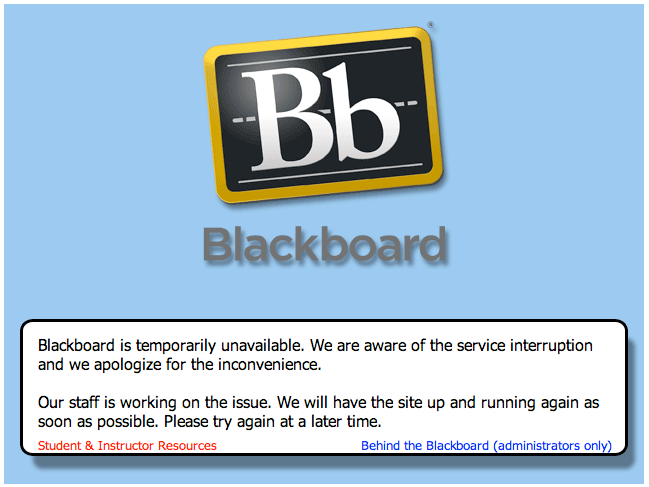
Before even getting to the login page in Blackboard, Safari 5 users may think Blackboard is down because they see this error message.  This has been verified only on Mac computers; PC's do not get this error.  Please have any students experiencing this problem use Firefox instead.

Here is Blackboard's list of compatible browsers:
http://kb.blackboard.com/pages/viewpage.action?pageId=56821440

Comments Not Showing for Assignments and SafeAssignments

When your students view their grades for regular Assignments or SafeAssignments, they cannot see your comments in the Comments column within My Grades. However, the student will see the comment if they click on the score for the assignment.  Please explain to your students how to see your comments.

This problem is slated to be fixed in a future release of Blackboard.

Thursday, September 9, 2010

My Tasks Error Workaround

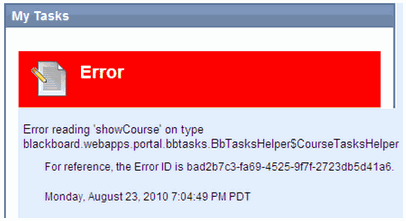
According to Blackboard, this error occurs when copying a course without copying the settings. This will not be fixed permanently until we upgrade to version 9.1, which I don't believe will happen until perhaps sometime next year. In the meantime, we have a manual workaround for this error.

Please try the following steps to reset the announcements and tasks that are causing the error.

  1. Show all your courses and announcements in the My Courses module
    1. Click the gear icon in the upper right corner of the My Courses module on the Welcome page
    2. Place a check mark for every class in the Display Course ID and Display Announcements columns
    3. Click Submit
  2. When you are returned to the Welcome page, hopefully not all of your courses will show in the My Courses module. The last course listed should be the course that is causing the error. You will need to go into that course and access Announcements and Tasks to clear it.
    1. Click the last course that shows in the My Courses module
    2. In the Control Panel expand Course Tools
    3. Click Announcements and wait for the page to refresh
    4. Click Tasks and wait for the page to refresh
  3. Click the Welcome tab to return to the Welcome page. Hopefully all your courses will display now and the red error message will be gone.  If this worked, you can use the gear icon again to uncheck the courses you don't want to display anymore.  Having the Display Announcements column checked should no longer cause only a partial list of your courses to display, so you can choose whether you want those checked or not.
I have seen one case where the course that was causing the problem was not the last in the list, but was in the middle of the list. The only way we found this was to follow the steps above for every course until we hit the one causing the error. That seems to be a rare situation though.

I am working hard to convince Bb to give us a better fix for this if you want to wait to see if that happens, but I wanted to get this information out to those of you that are willing to go through these steps to fix the problem. When you fix the problem for your courses, your students will no longer see the error message.

Tuesday, September 7, 2010

Show the Menu in Blackboard

Sometimes the course menu just disappears in Blackboard 9.  When this happens, students can become confused about how to get the menu to show again.  I made a video to show students how to show the menu again so that you can give them the link to help them out.  Feel free to share this link as needed.

Here is the link:

Thursday, August 26, 2010

Blackboard Browser Wars

Overall, Firefox tends to be a faster and more reliable browser to use for Blackboard than IE. However, we are seeing a problem with hiding users in Firefox that works okay in IE. In the Grade Center, when you click the chevron next to a student's name, then click Hide User the student will be hidden in IE, but not in Firefox. To work around this in Firefox you can hover over the Manage button, then click Student Visibility and hide your students there. This bug isn't slated to be fixed until version 9.2, so it will be quite a while before it gets fixed. We're currently on version 9.0 SP4.

We've seen cases where the scroll bars in the Grade Center weren't showing in IE 8, so those using IE 8 may want to try using Firefox instead. This bug will be fixed in the next Service Pack (SP5) update.

Another bug challenge we're seeing is the Mark as Read button doesn't work in the discussion board when using IE. This does work in Firefox. Grading discussion boards is faster in Firefox, so you may want to switch just for that reason.

You might want to suggest that your students use a different browser anytime they're having problems with Blackboard as the first possible solution.  This very often fixes problems.  Here is a list of the most compatible browsers for Blackboard that you can give your students.

Friday, August 20, 2010

Send Blackboard Announcements by Email

When you create an announcement in Blackboard, usually an email is sent to your students that tells them they have an announcement to read in Bb. However, at the moment, emails are not being sent. So for now, it's best to use the "Send Email" tool in Bb to send announcements to your students. This has been reported to Bb and we hope for a fix soon on this.

Also, my workaround for getting rid of the "show courses" error message in the My Tasks module on the Welcome page only worked for some people. We're hoping Bb will give us a fix for this one soon as well.

The good news is that quizzes are working as expected and no one has reported any further problems with them!

Tuesday, August 17, 2010

Quiz Problem and My Tasks Error Message Solved

The quiz problems we've seen since last Thursday seem to have been solved.  Blackboard restarted 2 of our app servers today and that seems to have done the trick.  You should no longer be seeing the HTTP Status 500 error messages or just a white screen when clicking on a quiz to take it.  If you are still experiencing any problems with quizzes, please let me know.

Those of you that have been seeing the red "show course" error message in the My Tasks module on the Welcome page can possibly fix this error by going into any course.  In the Control Panel expand Customization then click Style.  Don't make any changes, but do click Submit to get Blackboard to reread the settings on this page.  Hopefully your error message will be gone.  If this doesn't work for you, please let me know.

Wednesday, August 11, 2010

Quiz Whiteout Problem in Some Browsers

This is a good news/bad news post.  The good news is that the upgrade to Bb 9.0 SP4 is finished a bit early and you can go back to getting your courses ready for the fall semester.

The bad news is that in some browsers, you get a white screen when clicking on a test or quiz to take it (see the picture below).  This has been reported to Blackboard and we're looking forward to a fix as soon as possible.  Right now quizzes are working as expected in Firefox 3.6.6 and IE 7.  The browsers known to have problems are IE 8, Safari 5.0.1, and Firefox 3.6.8.

I'll post an update as soon as we find out any more information about this.

Tuesday, July 27, 2010

Teaching with Blogs

Now that Blackboard has the capability to add blogs and journals to your courses, you may be wondering how you might use them to enhance student learning.  Here are some resources for you to explore to find out more about using blogs for teaching and learning.

Tuesday, July 20, 2010

Avatars Now Available in Bb 9

An avatar is a picture or image that represents you. Avatars can be used to personalize the Blackboard experience and will appear by your name in certain areas of your courses such as journals and blogs. Both faculty and students can upload avatars.

Instructions on how to use avatars can be found at:
http://www.gcccd.edu/online/tutorials/bb/avatars.pdf

Thursday, June 17, 2010

Bb 9 Important Information!

Please Report Blackboard Slowness/Timeouts

If you experience Blackboard running slowly, crashing, or timing out, could you please send me an email immediately with the following information:
  1. Date and Time you experienced this
  2. What you were doing in Blackboard at the time
  3. What you experienced (i.e. slow, crash) with as much detail as you can including error messages
  4. What internet provider were you using (i.e. Cox cable, AT&T DSL, or on campus)

Check the End Date for Tests

There was a serious problem with dates for tests, and Blackboard ran a script to fix that problem.  This fix may impact your courses.  If you previously set begin dates for your tests, please double check to make sure the end dates are the dates you want.  The script may have reset the end date to a date 30 days after the start date.

Copy Settings when Copying a Course

Copying a course to a new course without copying course settings can create a situation where the new course does not have any settings for one or more course tools. If a course that is copied without settings has one of the checkboxes selected in "My Courses" (using the gear icon) to show Announcements or Tasks, the system will fail while trying to determine whether this tool is even enabled in that course, and any courses later in the list will fail to display in My Courses.  This problem may also result in a red error message in the My Tasks module that says: Error reading 'showCourse' on type blackboard.webapps.portal.bbtasks.BbTasksHelper$CourseTasksHelper.

Blackboard has run a script to clear up the current instances of this issue. This fix will not be permanent, but should clear up any current lack of settings.   A workaround you can apply is visiting each tool enabled in the course after copying it. A full fix for this issue will be available in a later version of Blackboard.

To prevent this from happening, it is important that Settings is checked every time you use Course Copy, so please keep this in mind when you prepare for your Fall classes.

Course Entry Point

Make sure you set your Course Entry Point (Control Panel > Customization > Style) to Announcements, a content area, or a module page.  If you set your Course Entry Point to either My Grades or an External Link, you will not be able to access your course.

Thursday, June 10, 2010

Students are not receiving Announcement emails from Blackboard

When you post an announcement to your courses, normally Blackboard sends that announcement to your students through email.  Right now, some announcement emails are not being sent by Blackboard.  To make sure your announcements are reaching your students, please use the Send Email tool (Control Panel > Course Tools > Send Email) to send your students the information they need to begin your courses.

This issue has been reported to Blackboard and has been given the highest priority.  I am hopeful for a fast fix for this, but wanted to give you an alternative to use until it is fixed.

Tuesday, June 8, 2010

A Few Tips For Bb 9

As anticipated, there are a few things that need to be adjusted for Blackboard 9.  I'll address a few of them here.

1.  SafeAssign needs to be enabled
This only pertains to course containers that were created for the summer semester.  Fall semester containers should be set correctly for this.  In order to use SafeAssign you need to change these settings.

  • Control Panel > Customization > Tool Availability
  • Scroll down and make sure that both SafeAssign and SafeAssignment are checked, then click Submit
2. My Courses list
Some people have had problems getting all their courses to show in the My Courses section on the Welcome page.  If you are experiencing this problem, follow these steps to get your courses to display.
  • Click on the gear icon in the upper right corner of the My Courses section
  • Uncheck every check that appears in the Display Announcements column
  • To have a course show, check the Display Course Name and Display Course ID columns
  • To hide a course from My Courses, uncheck everything in the row for that course
  • Click Submit when done
3. Always choose a Display Until date if you choose a Display After date
For an item, test, discussion board, or just about anywhere you can choose a date range, make sure you choose both a Display Until date and a Display After date.  An error can occur if both dates are not defined.

4. Use dates for announcements
When you create an announcement, you have the option to set the announcement duration to Permanent or Date Restricted.  If you choose Permanent, your announcement will not show up in the My Announcements section on the Welcome page.  To make sure it shows up there, you need to choose Date Restricted and assign both a Display After and Display Until date.

Thursday, May 20, 2010

Bb 9 - Upgrade Schedule

Here is the sequence of events that will take place to complete the upgrade to Blackboard version 9.

  • Friday, May 28 - Snapshot stops running.  This means that information regarding class enrollments, email address changes, etc. will stop being transferred from WebAdvisor to Blackboard.
  • Wednesday, June 2 - Grade deadline. 
  • Thursday, June 3 at 10 pm until Saturday, June 5 at 5am  - The upgrade will be installed.  Blackboard will not be available during this time.  (time approximate)
  • Saturday, June 5 - if all has gone well, faculty can begin working on Summer semester containers in Blackboard.
  • Monday, June 7 - templates will be copied from the test server to the live server to prepare for the creation of Fall semester containers and other settings will be adjusted as needed.
  • Tuesday, June 8 at approximately 6 am - Snapshot begins running again.  Fall semester containers are created and enrollments for Summer semester are updated.
  • Monday, June 14 - Summer Semester begins and everything runs smoothly!

Thursday, May 13, 2010

Bb 9 - You Need To Add Tools To Your Course Menu

In Blackboard 8, there are links below your menu that allow students to access Communication and Course Tools such as Email, Messages, Discussion Board, Calendar, My Grades, and the User Manual.

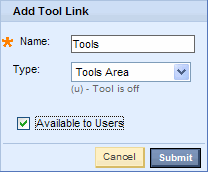
In Blackboard 9, these links are no longer available to students, so you will need to give your students access to these tools by adding a menu item for them.  Bb 9 has a "Tools Area" tool that you can add to your menu that contains all the tools that you want to make available to your students. 

 Here is how to add this "Tools Area" to your menu in Bb 9:
  1. Make sure Edit Mode is On
  2. Hover over the + sign in the menu
  3. Click on Create Tool Link
  4. Name: Tools (it will help our students if everyone names this the same thing!)
  5. Type: Tools Area
  6. Check Available to Users
  7. Submit


When you click on the Tools link you just created, you will see the Tools area. This new tool makes it very easy for you to control which tools you want your students see.  Just click the Hide Link or Show Link buttons next to each tool to customize this page to meet your needs.

Tuesday, May 4, 2010

Bb 9 - Problems with Test Banks from Publishers

Some colleges already using Blackboard 9 have reported issues with some test banks provided by publishers.  Please be aware that you may need to contact your publisher to get the most recent test bank software from them.

 
Known to work correctly with Bb 9:
  • Diploma version 6.67
  • ExamView version 6.2.x
  • TestGen 7.4.4
 EZ Test needs to be loaded in Bb 8 before the upgrade.

If you are copying a course that is already using a test bank in Bb 8, it should work okay in Bb 9.

Thursday, April 29, 2010

Bb 9 - Blogs and Journals: FAQ's

Last week I posted links to some videos about how to use blogs and journals and that post raised a few questions that are answered here.

Blogs and Journals provide students and instructors with a social learning tool for expressing their thoughts and reflecting on their learning, either privately (with the instructor) or publicly (with others in the course). These tools empower all course users to create and share ideas, while instructors maintain the ability to edit or remove any inappropriate material.

What is the difference between Journals, Blogs, and Discussion Board forums?
  • A journal is like a private diary that the student shares with the instructor.
  • A blog is like an open diary that everyone in the class can read and comment on.
  • A discussion board forum is like an open meeting where anyone can participate equally.
An example of when to use an individual blog instead of a discussion board would be when you want students to post an essay and have other students comment on it.  Using a blog for this assignment would keep the essay intact with all the comments attached to it.  In a discussion board forum this type of assignment often spawns other threads and it can be confusing where the original essay is located and difficult to find all the comments it generated.

Where Do Blogs and Journals Appear?

Instructors can find them in the Control Panel under Course Tools.  Instructors can provide access to students through links in content areas, blog or journal links on the course menu, or a Tools Area link on the course menu.

Can I make Blogs and Journals Public?

No. The privacy of students' course work needs to be respected. Opening these tools to the outside world may violate privacy laws.

Wednesday, April 21, 2010

Bb 9 - Blogs and Journals

New tools available in Blackboard 9 are Blogs and Journals.  Here are some videos that show you how to add them to your class and post to them.  You can provide links to these videos within your course for your students to view to explain to them how to use these tools.  These videos aren't perfect for student use because some instructor view stuff shows on the pages, but I think it's better than having to create instructions yourself.  See my recommendations below for alternative ways of providing links to these tools within your course.

  • Creating a Journal
    (I recommend creating a link to a specific journal using Collaborate > Create Journals from within your content area instead of the process shown in this video)
  • Creating Journal Entries (for students)